Automate your LinkedIn posts
Your Mavrk specialists can run your LinkedIn presence end to end: draft posts every week, hand them to you for review, and publish the approved batch — spaced out over the week — the moment you tap Approve.
What the pipeline does
Monday 9am   Social Media Manager drafts this week's posts (your voice, your pillars)
             ↓
My Tasks     The batch lands under "Needs you" — full text, ready to publish
             ↓
You          Read it, edit notes if needed, tap Approve (or Reject)
             ↓
LinkedIn     Post 1 publishes immediately; the rest go out on the
             following mornings at 9am, automatically
You review every word before it's public. Nothing ever posts without your approval.
Set it up (once, ~5 minutes)
1. Give your content specialist the playbook
- Open Company and pick (or hire) a Social Media Manager.
- On their Skills tab, add your brand-voice skill — what you sound like, what you never claim, your content themes. If you don't have one yet, ask your Concierge: "Create a content playbook skill for my business and install it on my Social Media Manager."
2. Schedule the weekly draft
- On the specialist's card in Company, type the job into Give them a task, e.g. "Draft 3 LinkedIn posts for this week using your playbook, then submit them for review."
- Change Just once, now to Every Monday, 9am and press Schedule.
- Manage or stop it any time in My Tasks → Repeating.
3. Connect LinkedIn
- When your first batch arrives in My Tasks, tap Approve.
- If LinkedIn isn't connected yet, Mavrk opens LinkedIn's consent screen — sign in and click Allow. That's the whole connection.
- Approve the task again — post 1 publishes immediately and the rest are scheduled.
Posts publish from the LinkedIn profile that clicked Allow. LinkedIn connections last 60 days; when yours expires, the next approval simply re-opens the consent screen.
Reviewing well
- The task shows the exact text that will be published — what you approve is what goes out.
- Want changes? Reject with a note ("post 2 is too salesy — rewrite around the customer story") and the specialist redrafts.
- Each published post's link is shown on the task after it goes out.
FAQ
Can it post to our company page instead of my profile? Not yet — LinkedIn gates company-page posting behind a separate approval process. Personal-profile posting also typically reaches more people for small businesses. Company pages are on the roadmap.
Can I change the posting schedule? Yes — the batch spacing is every other morning at 9am by default. Reject with a note like "post these Tue/Thu instead" and re-approve, or ask your Concierge to adjust.
What about Instagram? Instagram publishing uses the Meta connector (Connectors tab → Meta) with an Instagram professional account. The same review-then-publish flow applies.
Is my LinkedIn login stored? No. Mavrk never sees your password — LinkedIn gives Mavrk a limited posting permission you can revoke any time from LinkedIn's Permitted Services page.
Advanced: bring your own LinkedIn app
Most workspaces use Mavrk's built-in LinkedIn connection. If your organisation requires its own LinkedIn developer app (e.g. for compliance), it takes about five minutes:
1. Create the app
Create an app at developer.linkedin.com (LinkedIn requires attaching it to a LinkedIn company page you admin).
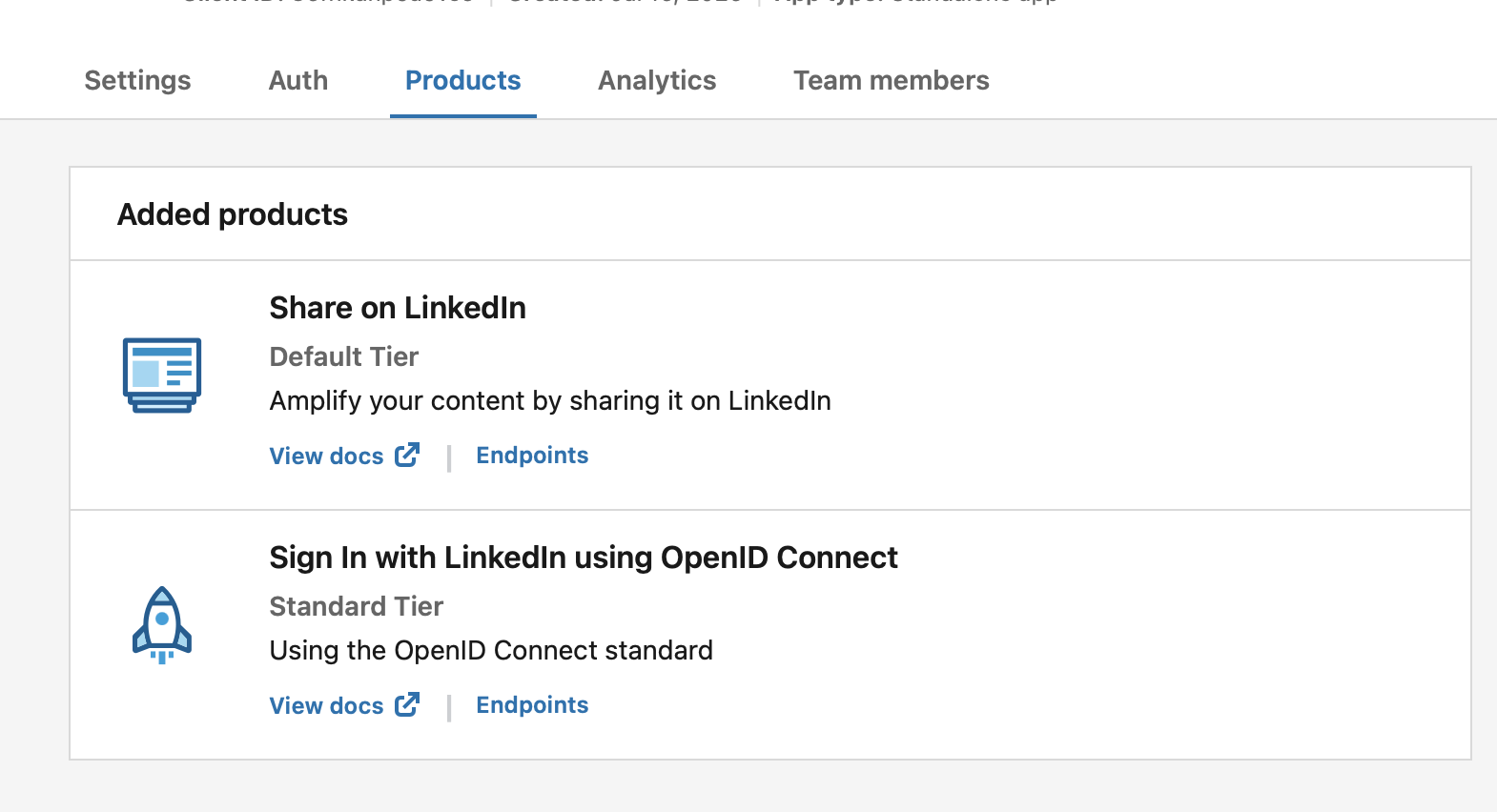
2. Add the two products
On the Products tab, add "Share on LinkedIn" and "Sign In with LinkedIn using OpenID Connect" — both approve instantly. Without these, the consent screen fails with a scope error. When you're done it looks like this:
3. Add the redirect URL
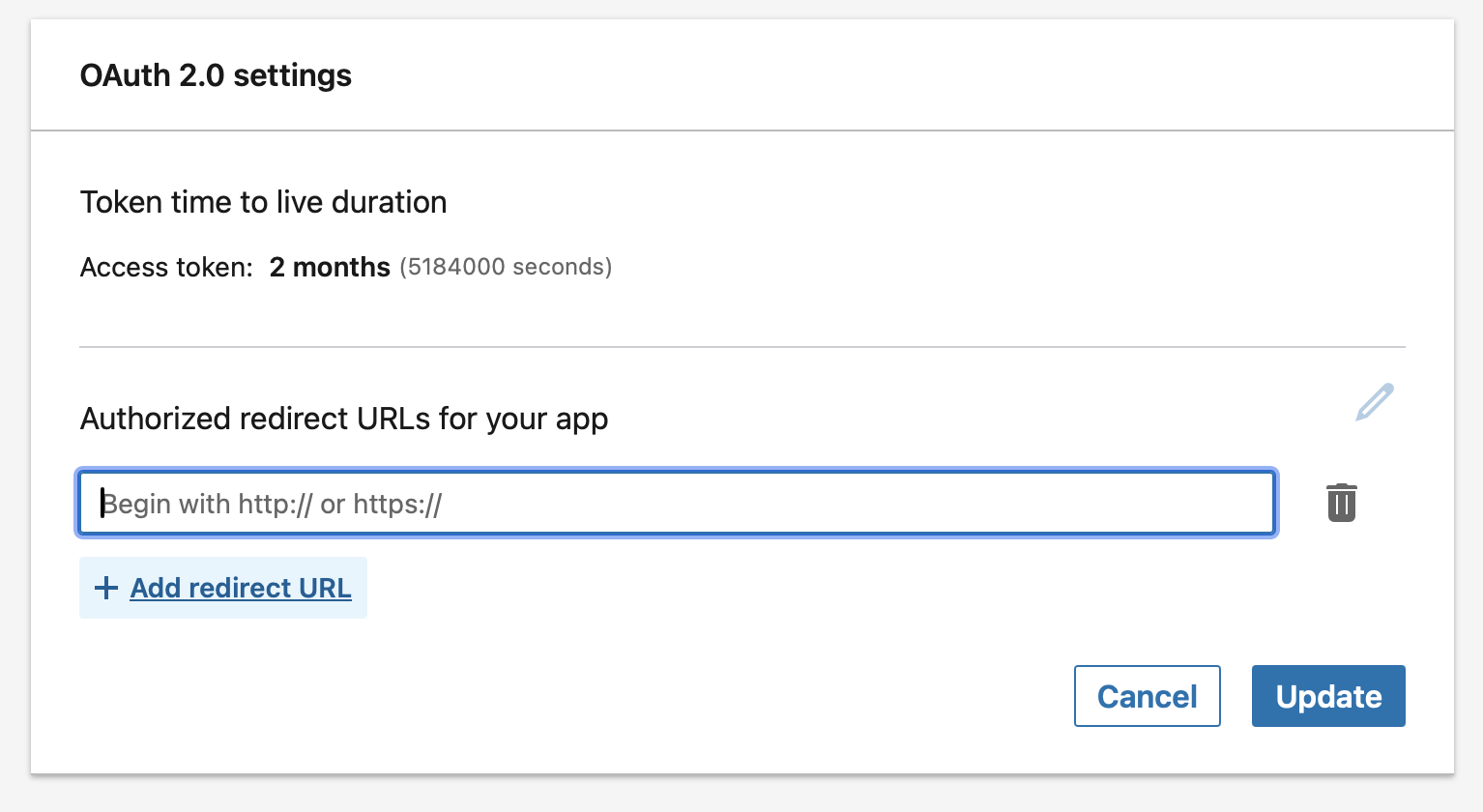
On the Auth tab, under OAuth 2.0 settings, click the pencil next to Authorized redirect URLs, choose + Add redirect URL, and enter:
https://mavrk.ai/api/linkedin/callback
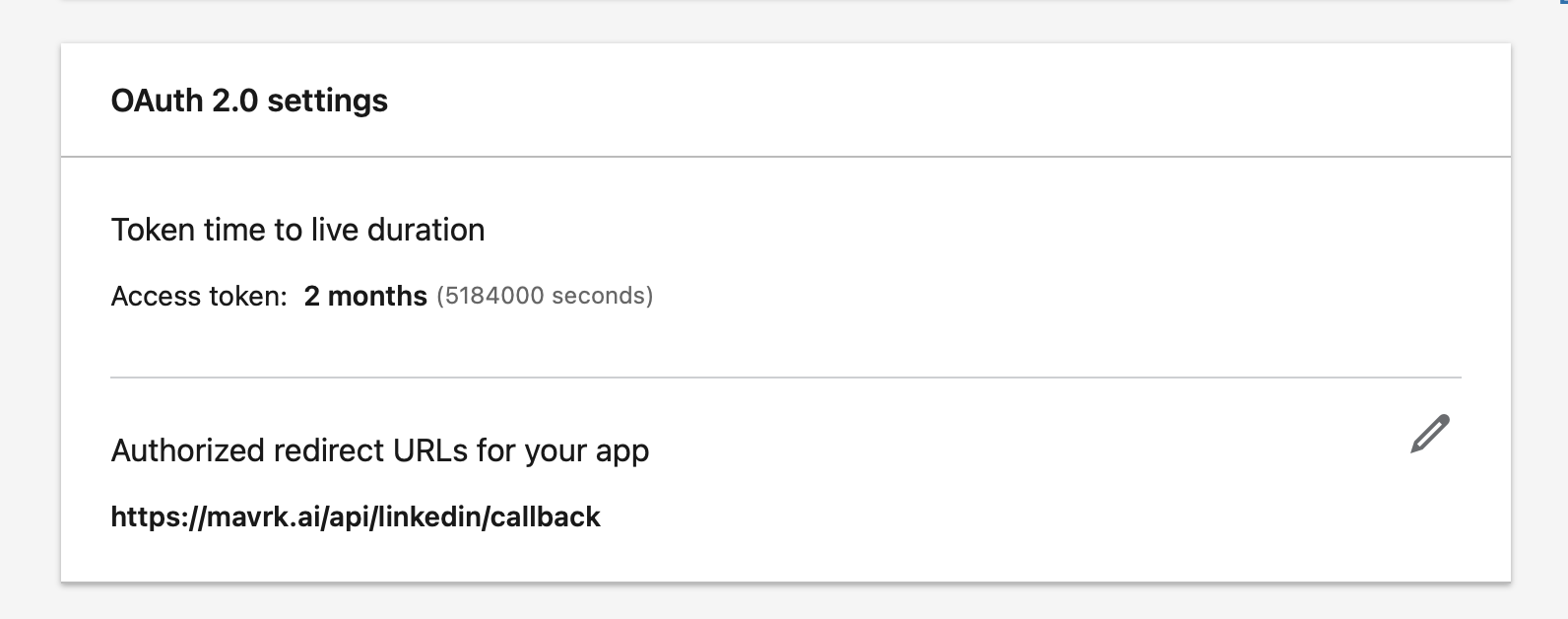
After saving, your OAuth settings should show the redirect URL and the 2-month access-token lifetime:
4. Send Mavrk your credentials
Your Client ID and Primary Client Secret are on the Auth tab under Application credentials:
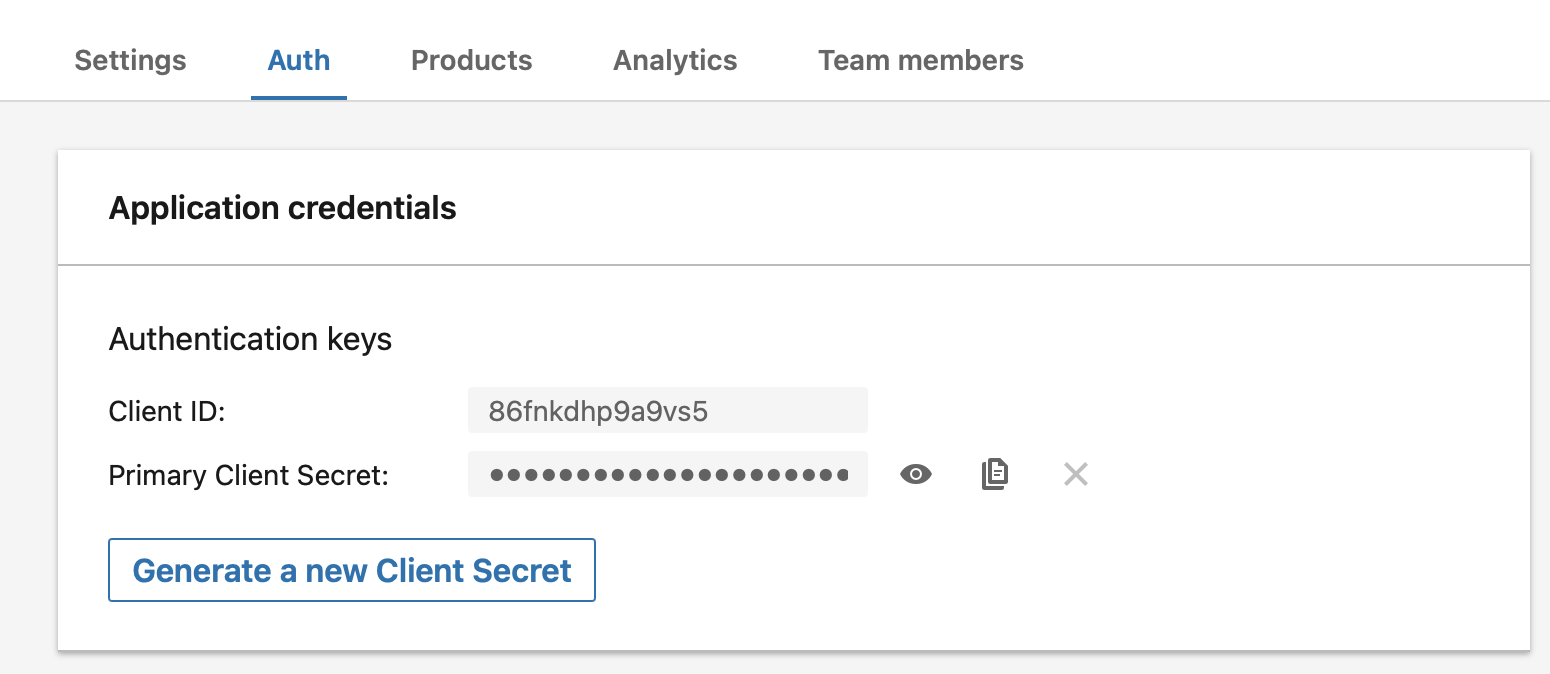
Send both to support@mavrk.ai and we'll switch your workspace to your app. Access tokens last 2 months (LinkedIn's maximum) — when one expires, reconnecting is a single click on your next approval.